

Introduction
Palo adopts asset co-location as the default content management pattern: every post or project lives in its own folder, and its images stay right beside the markdown file — not scattered across a global public/ or assets/ directory. This guide covers the essential rules, every supported reference syntax, and the one boundary you must never cross.
Palo 全线推行 资源同域混用模式(Asset Co-location) 作为默认内容管理范式:每篇文章或项目独立成文件夹,图片与 Markdown 文件放在一起,不再散落在全局 public/ 或 assets/ 目录中。本指南涵盖核心规则、所有支持的引用语法,以及一条不可逾越的红线。
Why Co-location?
Everything in One Place
When images live next to the markdown file that uses them, a post becomes a self-contained unit. You can move it, archive it, or hand it off to another author without hunting down assets scattered across the project tree. One folder equals one complete piece of content.
图片与引用它的 Markdown 文件处于同一目录时,整篇文章就成为一个自包含单元。你可以移动它、归档它,或者交给其他作者,而不需要在项目树中四处寻找散落的资源文件。一个文件夹就是一篇完整的内容。
Automatic Optimization
Images placed under src/content/ are processed by Astro’s build pipeline at compile time. Palo resolves co-located relative paths (e.g. ./cover.jpg) into ImageMetadata via import.meta.glob, then feeds them through Sharp for WebP conversion, dimension metadata, and — depending on which syntax you choose — responsive srcset generation.
放在 src/content/ 下的图片会在编译期经过 Astro 构建管线。Palo 通过 import.meta.glob 将同域相对路径(如 ./cover.jpg)解析为 ImageMetadata,再送入 Sharp 进行 WebP 转换、尺寸元数据写入,并根据你选择的语法决定是否生成响应式 srcset。
Important distinction / 重要区分:not every syntax gives you the same level of control. Markdown syntax auto-optimizes at the original aspect ratio;
<BreakoutImage>adds responsive srcset;<Image>gives you full width/height/crop control. See Choosing the Right Method below.并非所有语法提供相同级别的控制。 Markdown 语法按原图比例自动优化;
<BreakoutImage>增加响应式 srcset;<Image>提供完整的宽高与裁切控制。详见下方 选择合适的方式。
The Intuition: ./ Just Works
The simplest rule in Palo: if an image belongs to a post, reference it with ./filename.jpg. No aliases, no build configuration, no global path hunting. It works exactly how you expect local file paths to work — because that’s what they are.
Palo 中最简单的规则:图片属于文章,就用 ./文件名.jpg 引用它。没有别名、没有构建配置、不需要在全局路径中寻找。它完全按照你对本地文件路径的直觉工作——因为它们就是本地文件路径。
Recommended Directory Structure
When a post needs multiple local images, convert it to an index.md or index.mdx inside its own folder. Place a cover.jpg at the root and organize supporting media in an assets/ subdirectory.
当一篇文章需要引用多张本地图片时,将文章转换为独立文件夹内的 index.md 或 index.mdx。封面图 cover.jpg 放在根目录,辅助媒体归类到 assets/ 子目录:
src/content/posts/
└── 20260611-my-awesome-post/
    ├── index.mdx             <--- your article (index.md also works) / 文章正文
    ├── cover.jpg            <--- cover image / 封面图
    ├── sample.jpg           <--- inline demo image / 内嵌示例图
    └── assets/              <--- post-specific media / 本文独享媒体
        ├── step-01.png
        └── demo.gif
The same folder layout applies to projects under src/content/projects/.
项目(src/content/projects/)使用相同的文件夹结构。
Co-located Image Sync (copy-images)
Palo mirrors co-located images from src/content/ into public/posts/... and public/projects/... via scripts/copy-colocated-images.mjs. This script runs automatically before:
Palo 通过 scripts/copy-colocated-images.mjs 将 src/content/ 下的同域图片镜像到 public/posts/... 和 public/projects/...。该脚本会在以下命令启动前自动执行:
| Command | When sync runs |
|---|---|
npm run dev | Every dev server start / 每次启动开发服务器 |
npm start | Same as dev / 同 dev |
npm run build | Every production build / 每次生产构建 |
npm run copy-images | Manual sync anytime / 随时手动同步 |
You can also run npm run copy-images manually after adding or replacing images without restarting the dev server.
添加或替换图片后,也可单独运行 npm run copy-images,无需重启 dev server。
Why the mirror exists / 为什么需要镜像:
In dev mode, frontmatter covers and some fallbacks resolve to
/posts/{slug}/cover.jpgpublic URLs — the file must exist underpublic/Raw
<img src="/posts/.../file.jpg">always reads frompublic/External hard-coded URLs expect the public path
开发模式下,frontmatter 封面和部分回退路径指向
/posts/{slug}/cover.jpg— 文件必须存在于public/原生
<img src="/posts/.../file.jpg">始终从public/读取外部硬编码 URL 依赖 public 路径
What gets copied / 复制规则: only image files inside folders that contain index.md or index.mdx. Supported formats: .jpg, .jpeg, .png, .gif, .webp, .svg, .avif.
复制范围: 仅复制含有 index.md 或 index.mdx 的文件夹内的图片文件。支持格式:.jpg、.jpeg、.png、.gif、.webp、.svg、.avif。
Git policy / Git 提交规则: the generated mirror folders public/posts/{slug}/ and public/projects/{slug}/ are ignored by .gitignore. Commit the original files under src/content/..., not the copied public mirrors.
Git 策略: 自动生成的镜像目录 public/posts/{slug}/ 和 public/projects/{slug}/ 已被 .gitignore 忽略。请提交 src/content/... 下的源文件,而不是复制出来的 public 镜像。
If you need to maintain manual static files in public/posts or public/projects, place them at the collection root, such as public/posts/manual-download.pdf or public/projects/shared-preview.jpg. Avoid adding hand-maintained files inside slug subdirectories, because those folders are treated as generated mirrors.
如果确实需要在 public/posts 或 public/projects 中手动维护静态文件,请放在集合根目录,例如 public/posts/manual-download.pdf 或 public/projects/shared-preview.jpg。不要把手动文件放进 slug 子目录,因为这些子目录会被视为自动生成的镜像目录。
How to Reference Co-located Images
All examples below use sample.jpg from this post’s folder. Each section includes the code and a live render.
以下所有示例均使用本文目录下的 sample.jpg,每节均包含代码与实时渲染效果。
Cover Image in Frontmatter
Place cover.jpg next to index.mdx and reference it with a relative path. Palo resolves it through resolveContentImage() for the post page header, blog list cards, and the homepage LatestPosts section.
将 cover.jpg 放在 index.mdx 同目录并在 frontmatter 中引用。Palo 通过 resolveContentImage() 为文章页头、博客列表卡片和首页 LatestPosts 区域进行解析与优化:
coverImage: ./cover.jpg
coverImagePosition: head   # top | head | bottom | none
coverImagePosition controls where the cover renders in PostHeader:
coverImagePosition 控制封面在 PostHeader 中的渲染位置:
| Value / 值 | Effect / 效果 |
|---|---|
top | Cover at the very top of the page / 封面显示在页面最顶部 |
head | Cover after breadcrumbs, before content (default) / 面包屑之后、正文之前(默认) |
bottom | Cover at the bottom of the header block / 封面显示在页头区块底部 |
none | Hide the cover image / 隐藏封面图 |
What you get: WebP output, responsive srcset on cards and headers, zero CLS via ContentImage.
输出效果: WebP 格式、卡片和页头的响应式 srcset、通过 ContentImage 实现零 CLS。
Filename must match exactly / 文件名必须完全一致: if the file is
cover.png, writecoverImage: ./cover.png— not./cover.jpg. A mismatched extension causes a missing or wrong cover image.文件名必须完全一致: 文件是
cover.png就写coverImage: ./cover.png,不要写./cover.jpg。扩展名不匹配会导致封面缺失或显示错误的图片。
Inline Images with Markdown Syntax
Standard Markdown image syntax works directly with co-located paths. Astro resolves the path at build time and routes it through Sharp.
标准 Markdown 图片语法直接支持同域路径,Astro 在构建时解析路径并送入 Sharp 优化管线:
Live example:
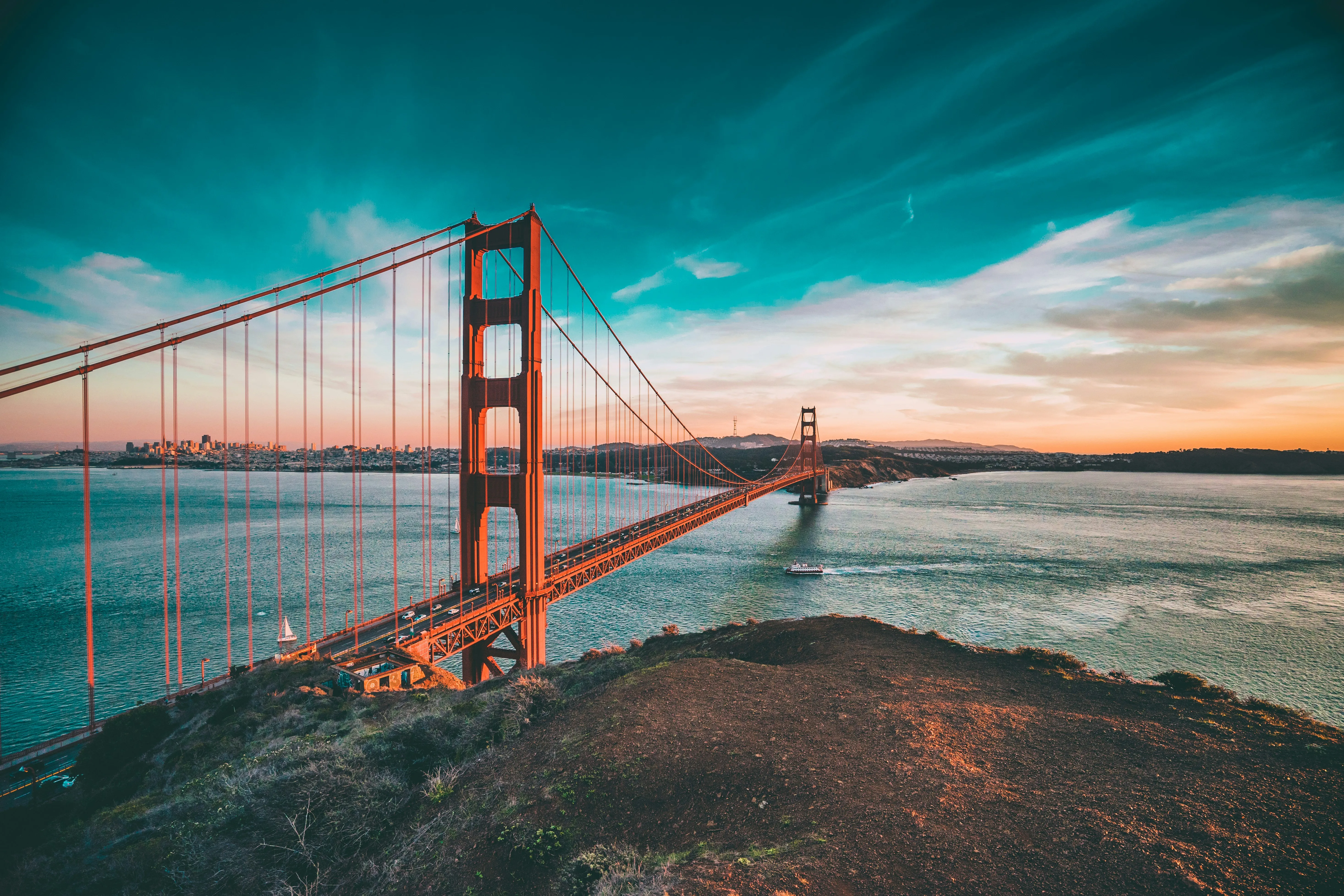
What you get:
- ✅ WebP conversion at build time / 构建时 WebP 转换
- ✅ Original aspect ratio preserved / 保持原图比例
- ✅ Auto
widthandheightfrom source metadata / 自动写入原图尺寸的 width/height - ❌ No custom display dimensions / 无法指定显示尺寸
- ❌ No responsive
srcset/ 不生成响应式 srcset - ❌ No server-side crop (
fit) / 不支持服务端裁切
Best for straightforward inline images in prose where you don’t need precise sizing control.
适合正文中简单的内嵌配图,无需精确尺寸控制的场景。
Inline Images with BreakoutImage
For images that need dramatic visual presence — hero shots, section dividers, full-width showcases — use Palo’s BreakoutImage component. Import it once at the top of your MDX file, then pass co-located paths directly.
对于需要强烈视觉冲击力的图片——主视觉、章节分隔、全宽展示——使用 Palo 的 BreakoutImage 组件。在 MDX 文件顶部导入一次,之后直接传入同域相对路径即可:
import BreakoutImage from '@components/BreakoutImage.astro'

<BreakoutImage
  src="./sample.jpg"
  alt="Sample image — full-width breakout"
  layout="full"
/>

<BreakoutImage
  src="./sample.jpg"
  alt="Sample image — wide layout with edge gap"
  layout="wide"
/>

<BreakoutImage
  src="./sample.jpg"
  alt="Sample image — contained within article width"
  layout="contained"
/>
Live examples:
What you get:
- ✅ WebP + responsive
srcsetat[560, 840, 1120, 1400, 1680]w/ WebP + 五档响应式 srcset - ✅ Dominant-color placeholder while loading / 加载前主色调占位
- ✅ Three layout modes:
full,wide,contained/ 三种布局模式 - ⚠️ Display crop via CSS
object-cover, not Sharpfit/ 裁切靠 CSS object-cover,非 Sharp 服务端裁切 - ⚠️
widthsarray is fixed inside the component / widths 数组在组件内固定,不可自定义
Inline Images with the Astro <Image> Component
When you need precise output dimensions, a custom responsive srcset, or server-side cropping via Sharp’s fit option, use Astro’s built-in <Image> component from astro:assets. You must import the image file first — string paths like src="./sample.jpg" are not supported.
当你需要精确输出尺寸、自定义响应式 srcset,或通过 Sharp fit 选项进行服务端裁切时,使用 Astro 内置的 <Image> 组件(来自 astro:assets)。必须先 import 图片文件——不支持直接写 src="./sample.jpg" 字符串路径。
import { Image } from 'astro:assets'
import sample from './sample.jpg'

<!-- Basic usage / 基础用法 -->
<Image
  src={sample}
  alt="Sample image with custom display dimensions"
  width={1200}
  height={800}
/>

<!-- With responsive srcset / 带响应式 srcset -->
<Image
  src={sample}
  alt="Sample image — responsive gallery tile"
  width={1200}
  height={800}
  widths={[400, 800, 1200]}
  class="rounded-lg object-cover"
/>

<!-- Server-side crop via Sharp fit / 通过 Sharp fit 服务端裁切 -->
<Image
  src={sample}
  alt="Sample image — cropped to 16:9"
  width={1600}
  height={900}
  fit="cover"
  class="rounded-lg"
/>
Live example:
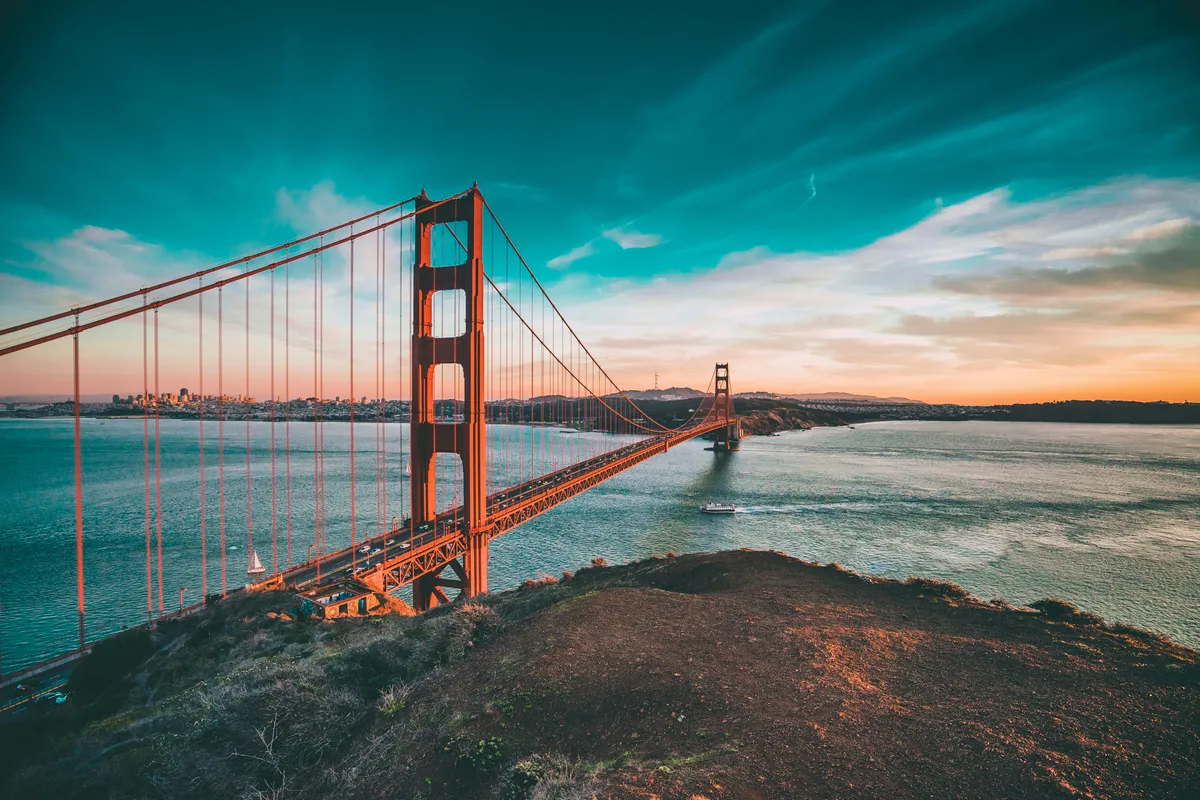
Required props / 必填属性: src, alt, width, height. Omitting alt throws ImageMissingAlt and crashes the page.
必填属性: src、alt、width、height。缺少 alt 会抛出 ImageMissingAlt 错误并导致页面崩溃。
What you get:
- ✅ WebP + custom responsive
srcsetviawidthsprop / 通过widths自定义响应式 srcset - ✅ Sharp generates images at your specified dimensions / Sharp 按指定尺寸生成优化图
- ✅
fit="cover"for server-side crop /fit="cover"实现服务端裁切 - ⚠️ Requires
importat the top of the MDX file / 需要在 MDX 顶部 import - ⚠️ Does not break out of the article container / 不会突破文章容器宽度
The <img> Tag Boundary
This is a hard rule. Do not cross it.
这是一条刚性红线,不可逾越。
Native HTML <img> tags cannot reference co-located relative paths. Astro’s build-time optimization only activates through component or Markdown-syntax references — raw HTML bypasses the entire Sharp pipeline. Using ./sample.jpg inside an <img> tag resolves against the page URL at runtime (e.g. /blog/my-post/sample.jpg) and returns 404.
原生 HTML <img> 标签不能引用同域相对路径。Astro 的构建时优化仅通过组件或 Markdown 语法引用激活——原始 HTML 会完全绕过 Sharp 管线。在 <img> 中使用 ./sample.jpg 会在运行时按页面 URL 解析(如 /blog/my-post/sample.jpg),最终 404。
<!-- ❌ Wrong / 错误 — relative path in raw HTML -->
<img src="./sample.jpg" alt="Sample" />

<!-- ✅ Correct / 正确 — absolute public/ path -->
<img src="/posts/20260611-asset-co-location-guide/sample.jpg" alt="Sample image via public path" />
Live example (public path only):
What you get:
- ❌ No Sharp WebP conversion / 不经过 Sharp WebP 转换
- ❌ No responsive
srcset/ 无响应式 srcset - ❌ Serves the original file from
public// 直接提供 public/ 中的原图 - ⚠️ May receive light post-build compression from
astro-compress/ 可能仅受astro-compress轻度二次压缩
If you must use a raw <img> tag, the src must point to a file inside public/. Co-located images are copied there automatically by copy-colocated-images.mjs (on dev, start, and build — see Co-located Image Sync).
如果必须使用原生 <img> 标签,src 必须指向 public/ 目录中的文件。同域图片由 copy-colocated-images.mjs 自动复制到 public(在 dev、start、build 时执行——见同域图片同步)。
Choosing the Right Method
Use this table to pick the syntax that matches your goal. All co-located paths (./sample.jpg) work with every row except raw <img>.
用这张表选择符合目标的语法。除原生 <img> 外,所有同域路径(./sample.jpg)均适用于下列各行。
| Goal / 目标 | Recommended Syntax / 推荐语法 | Sharp WebP | Responsive srcset | Custom dimensions / crop |
|---|---|---|---|---|
| Cover image / 封面图 | coverImage: ./cover.jpg in frontmatter | ✅ | ✅ (via ContentImage) | ❌ |
| Simple inline prose image / 正文简单配图 |  | ✅ | ❌ | ❌ |
| Full-width hero / breakout / 通栏大图 | <BreakoutImage src="./sample.jpg" /> | ✅ | ✅ (fixed widths) | ❌ (CSS crop only) |
| Gallery grid, precise sizing / 网格画廊、精确尺寸 | <Image src={sample} width={...} height={...} /> | ✅ | ✅ (custom widths) | ✅ (fit="cover") |
| Must use raw HTML / 必须用原生 HTML | <img src="/posts/.../sample.jpg" /> | ❌ | ❌ | ❌ |
Rule of thumb / 经验法则:
- Markdown → zero config, good enough for most body images / 零配置,大多数正文配图够用
- BreakoutImage → visual impact + responsive srcset, no import needed / 视觉冲击 + 响应式 srcset,无需 import
- Image → full control; import required / 完全控制;需要 import
<img>→ public paths only; last resort / 仅限 public 路径;最后手段
How Build-Time Optimization Works
Palo applies two layers of image optimization during npm run build:
Palo 在 npm run build 期间应用两层图片优化:
Layer 1 — Astro + Sharp (compile time)
When you use Markdown syntax, <BreakoutImage>, <Image>, or frontmatter coverImage, Astro’s asset pipeline:
当你使用 Markdown 语法、<BreakoutImage>、<Image> 或 frontmatter coverImage 时,Astro 资源管线会:
Resolve
./sample.jpg→src/content/{collection}/{slug}/sample.jpgviaimport.meta.globandresolveContentImage()Convert to WebP through Sharp (C++)
Generate
width/heightmetadata to prevent layout shiftOptionally emit multiple sizes for
srcset(BreakoutImage and<Image>withwidths)通过
import.meta.glob和resolveContentImage()将./sample.jpg解析为src/content/{collection}/{slug}/sample.jpg通过 Sharp(C++)转换为 WebP
生成
width/height元数据防止布局偏移可选地输出多档尺寸用于
srcset(BreakoutImage 和带widths的<Image>)
Output lands in /_astro/ with content hashes, e.g. /_astro/sample.CW6Q9fL6.webp.
输出写入 /_astro/ 并附带内容 hash,例如 /_astro/sample.CW6Q9fL6.webp。
Layer 2 — astro-compress (post-build)
After Astro finishes, the astro-compress integration scans dist/ and applies an additional compression pass to all image files — including co-located copies in public/. Build logs report the savings:
Astro 构建完成后,astro-compress 集成会扫描 dist/ 并对所有图片文件(包括 public/ 中的同域副本)进行二次压缩。构建日志会报告节省比例:
(-819 KB) 45.26% reduction in .../sample.jpg
✓ Successfully compressed a total of 46 Image files
Images served via raw <img> public paths receive Layer 2 only. Everything else gets both layers.
通过原生 <img> public 路径提供的图片仅经过第二层。其余所有方式均经过两层优化。
When public/ Still Matters
public/ is not deprecated — it is repositioned as a static asset reserve for specific edge cases. Use public/ when:
- You need the original, unprocessed file served as-is (e.g. high-resolution downloads)
- An external system or hard-coded URL references the asset directly
- You must use a raw
<img>tag and cannot switch to Markdown or a component - The image is a one-off that doesn’t warrant its own folder structure
public/ 并未被废弃,而是被重新定位为特定场景下的静态资源保留区。以下情况仍应使用 public/:
- 需要保留原始未压缩文件(如供用户下载的高清原图)
- 被外部系统或硬编码 URL 直接引用
- 必须使用原生
<img>标签且无法改用 Markdown 或组件 - 不值得建立独立文件夹的一次性图片
For everyday post images and covers, co-location is the default. public/ is the fallback, not the starting point.
日常文章的配图与封面,一律使用同域混用模式。public/ 是备选方案,不是默认起点。
When you do add manual files under public/posts or public/projects, keep them at the root level. Slug subdirectories are reserved for generated co-located mirrors and are ignored by Git.
当你确实要在 public/posts 或 public/projects 中手动添加文件时,请放在根目录。slug 子目录专门留给自动生成的同域镜像,并且会被 Git 忽略。
Image Source Comparison
| Source | Path Example | Sharp WebP | Responsive srcset | Best For |
|---|---|---|---|---|
| Co-located (Markdown) |  | ✅ | ❌ | Simple inline images |
| Co-located (BreakoutImage) | <BreakoutImage src="./sample.jpg" /> | ✅ | ✅ | Full-width hero shots |
| Co-located (Image) | <Image src={sample} width={...} /> | ✅ | ✅ (custom) | Galleries, precise crop |
| Co-located (frontmatter) | coverImage: ./cover.jpg | ✅ | ✅ | Post/project covers |
| src/assets/ | @assets/images/logo.svg | ✅ | ✅ | Shared site-wide resources |
| public/ (raw img) | /posts/.../sample.jpg | ❌ | ❌ | Original file, external URLs |
| 来源 | 路径示例 | Sharp WebP | 响应式 srcset | 适用场景 |
|---|---|---|---|---|
| 同域 (Markdown) |  | ✅ | ❌ | 正文简单配图 |
| 同域 (BreakoutImage) | <BreakoutImage src="./sample.jpg" /> | ✅ | ✅ | 通栏主视觉 |
| 同域 (Image) | <Image src={sample} width={...} /> | ✅ | ✅(自定义) | 网格画廊、精确裁切 |
| 同域 (frontmatter) | coverImage: ./cover.jpg | ✅ | ✅ | 文章/项目封面 |
| src/assets/ | @assets/images/logo.svg | ✅ | ✅ | 站点级共享资源 |
| public/ (原生 img) | /posts/.../sample.jpg | ❌ | ❌ | 原图直出、外部 URL |
Quick Reference
| Scenario | Syntax | Image Location |
|---|---|---|
| Cover (frontmatter) | coverImage: ./cover.jpg | Same folder as index.mdx |
| Inline (Markdown) |  | Same folder or subdirectory |
| Inline (BreakoutImage) | <BreakoutImage src="./sample.jpg" alt="..." /> | Same folder or subdirectory |
| Inline (Image) | import sample from './sample.jpg' then <Image src={sample} ... /> | Same folder or subdirectory |
Raw <img> tag | src="/posts/.../sample.jpg" | public/ only (auto-copied on dev/build) |
| Shared site asset | @assets/images/logo.svg | src/assets/ |
| Manual public file | /posts/manual-download.pdf | public/posts/ root |
| 场景 | 写法 | 资源位置 |
|---|---|---|
| 封面 (frontmatter) | coverImage: ./cover.jpg | 与 index.mdx 同目录 |
| 内嵌配图 (Markdown) |  | 同目录或子目录 |
| 内嵌配图 (BreakoutImage) | <BreakoutImage src="./sample.jpg" /> | 同目录或子目录 |
| 内嵌配图 (Image) | import sample from './sample.jpg' 后 <Image src={sample} ... /> | 同目录或子目录 |
原生 <img> 标签 | src="/posts/.../sample.jpg" | 仅限 public/(dev/build 时自动复制) |
| 站点共享资源 | @assets/images/logo.svg | src/assets/ |
| 手动 public 文件 | /posts/manual-download.pdf | public/posts/ 根目录 |
Troubleshooting
Cover image broken or missing in dev
Symptom: Page header shows a broken image or blank cover area after adding/replacing cover.jpg.
症状: 添加或更换 cover.jpg 后,页头封面显示破损图或空白。
Fix:
Confirm the file sits next to
index.md/index.mdxin the same folderConfirm frontmatter extension matches the file (
./cover.png≠./cover.jpg)Run
npm run copy-imagesor restartnpm run dev(sync runs on startup)Hard-refresh the browser (
Cmd+Shift+R)确认图片与
index.md/index.mdx在同一文件夹确认 frontmatter 扩展名与文件一致(
./cover.png≠./cover.jpg)运行
npm run copy-images或重启npm run dev(启动时自动同步)硬刷新浏览器(
Cmd+Shift+R)
Wrong cover image displayed
Symptom: Cover shows another post’s image (e.g. a lunar eclipse when you expected your own file).
症状: 封面显示了其他文章的图片。
Cause: Frontmatter references ./cover.jpg but the actual file is named differently (e.g. cover.png). The resolver may fall back to another post’s cover.jpg with the same filename.
原因: frontmatter 写了 ./cover.jpg,但实际文件名不同(如 cover.png)。解析器可能回退匹配到其他文章的同名 cover.jpg。
Fix: Match the frontmatter path to the exact filename and extension.
修复: 让 frontmatter 路径与文件名、扩展名完全一致。
Markdown / BreakoutImage works but cover does not
Markdown and BreakoutImage read directly from src/content/ via the Astro pipeline. Frontmatter covers in dev mode additionally require the public/posts/{slug}/ mirror. Running copy-images resolves this.
Markdown 和 BreakoutImage 通过 Astro 管线直接从 src/content/ 读取。Frontmatter 封面在开发模式下还需要 public/posts/{slug}/ 镜像。运行 copy-images 可解决。
Page crashes with ImageMissingAlt
The Astro <Image> component requires alt, width, and height. Missing alt crashes the entire page.
Astro <Image> 组件必须提供 alt、width、height。缺少 alt 会导致整页崩溃。
<!-- ❌ Crashes / 崩溃 -->
<Image src={cover} />

<!-- ✅ Correct / 正确 -->
<Image src={cover} alt="Cover" width={1200} height={800} />
Summary
Asset co-location is the recommended default for all new content in Palo. Place your Markdown and images in the same folder, reference them with intuitive ./ relative paths, and pick the syntax that matches your optimization needs:
资源同域混用是 Palo 中所有新内容的推荐默认模式。将 Markdown 与图片放在同一目录,用 ./ 相对路径引用,并根据优化需求选择语法:
- Markdown for zero-config inline images / 零配置正文配图
- BreakoutImage for full-width responsive hero shots / 通栏响应式主视觉
- Image for precise dimensions, custom srcset, and Sharp crop / 精确尺寸、自定义 srcset 和 Sharp 裁切
- Raw
<img>only withpublic/absolute paths — never.// 原生<img>仅限 public 绝对路径,绝不使用./
The intuition to carry: if an image belongs to a post, don’t let it leave the post’s folder.
一条直觉:图片属于文章,就不要让它离开文章的文件夹。
Share this post
Like this post? Share it with your network!